What the printable token maker supports
| Setting | Available options |
|---|---|
| Paper | A4 or US Letter |
| Physical size | 0.5″, 1″, 2″, 3″ or 4″ |
| Token shape | Circular or Square |
| Backs | Same artwork, named backs or none |
| Other format | Foldable standees with optional names and outlines |
| Sheet layout | Standard or Extra Frame Space |
How to make a printable token sheet
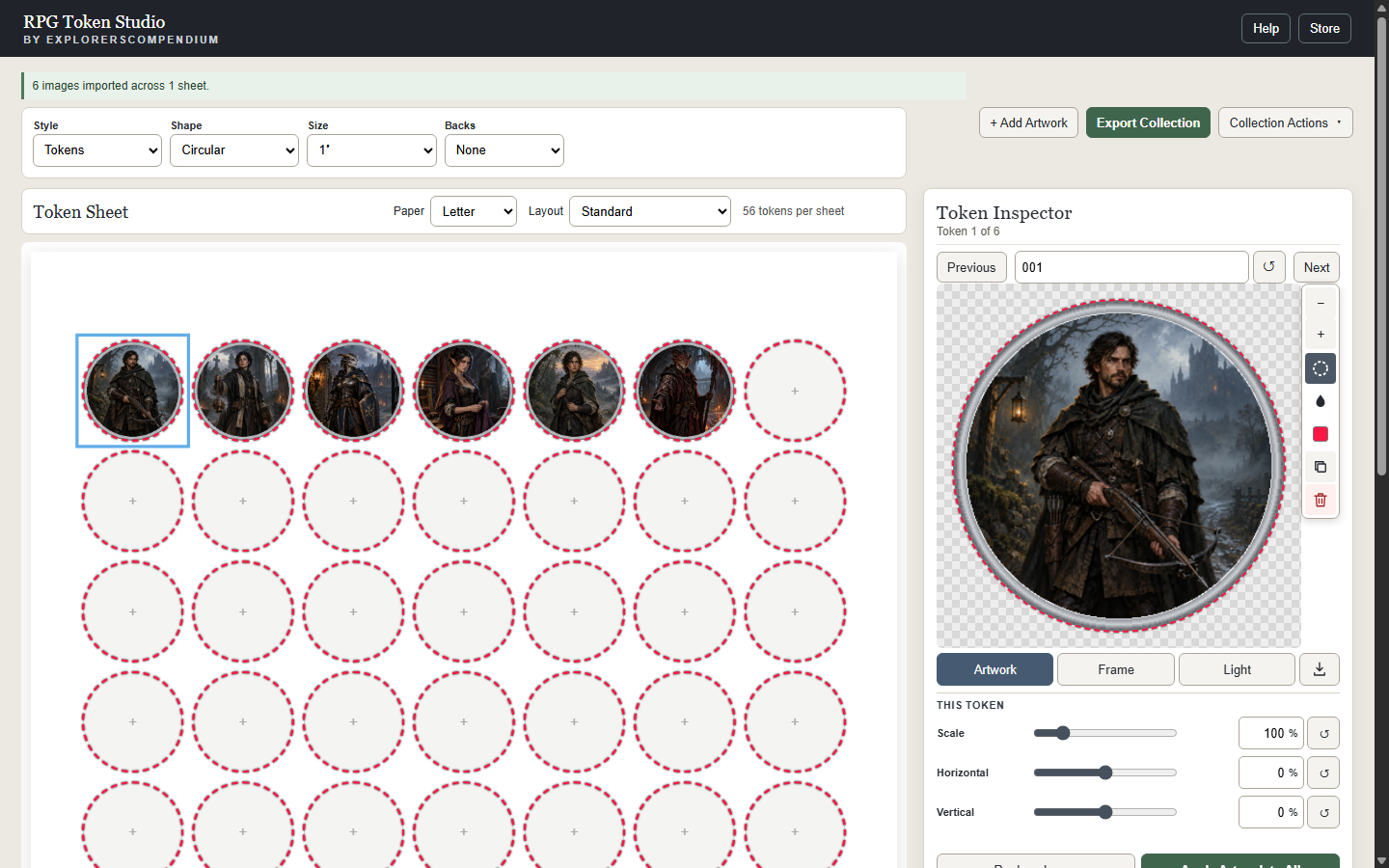
- Add your artwork. Select one or more PNG, JPG or WebP files. Artwork stays in your browser.
- Open Setup. Choose Tokens or Standees, then set shape, physical size, backs, paper and layout.
- Adjust the crop. Select a token on the sheet and use Artwork controls to scale and position it. Frame and Light can be changed for one token or applied to all.
- Review both sides. If you selected Same or Named backs, use Front and Back above the sheet before exporting.
- Export the sheet. Open Export Collection and choose Print / Save PDF.
Print at the intended size
In the browser print dialog, choose Actual Size or 100%. Disable headers and footers. Do not choose Fit to Page: that can change a one-inch token’s physical size.
Duplex tip: test one sheet on plain paper first. Printer feed direction and duplex alignment vary, especially near page edges.
Circle, square or standee?
Circle tokens are easy to cut and suit round bases. Square tokens preserve more of the original scene. Standees place mirrored artwork above a fold line for upright tabletop pieces. All three use the same artwork and can be prepared from the Setup panel.