How to

Make, print and play.

Follow the real Token Maker interface from artwork import to tabletop-ready files.

Print workflow

Printable D&D token maker

Set paper, physical size, circle or square shape, backs and standees, then print correctly scaled sheets.

Digital workflow

VTT token maker for Roll20 & Foundry

Use the correct export preset, understand pixel dimensions and download one token or a batch.

01 · Start here

Create your first token sheet

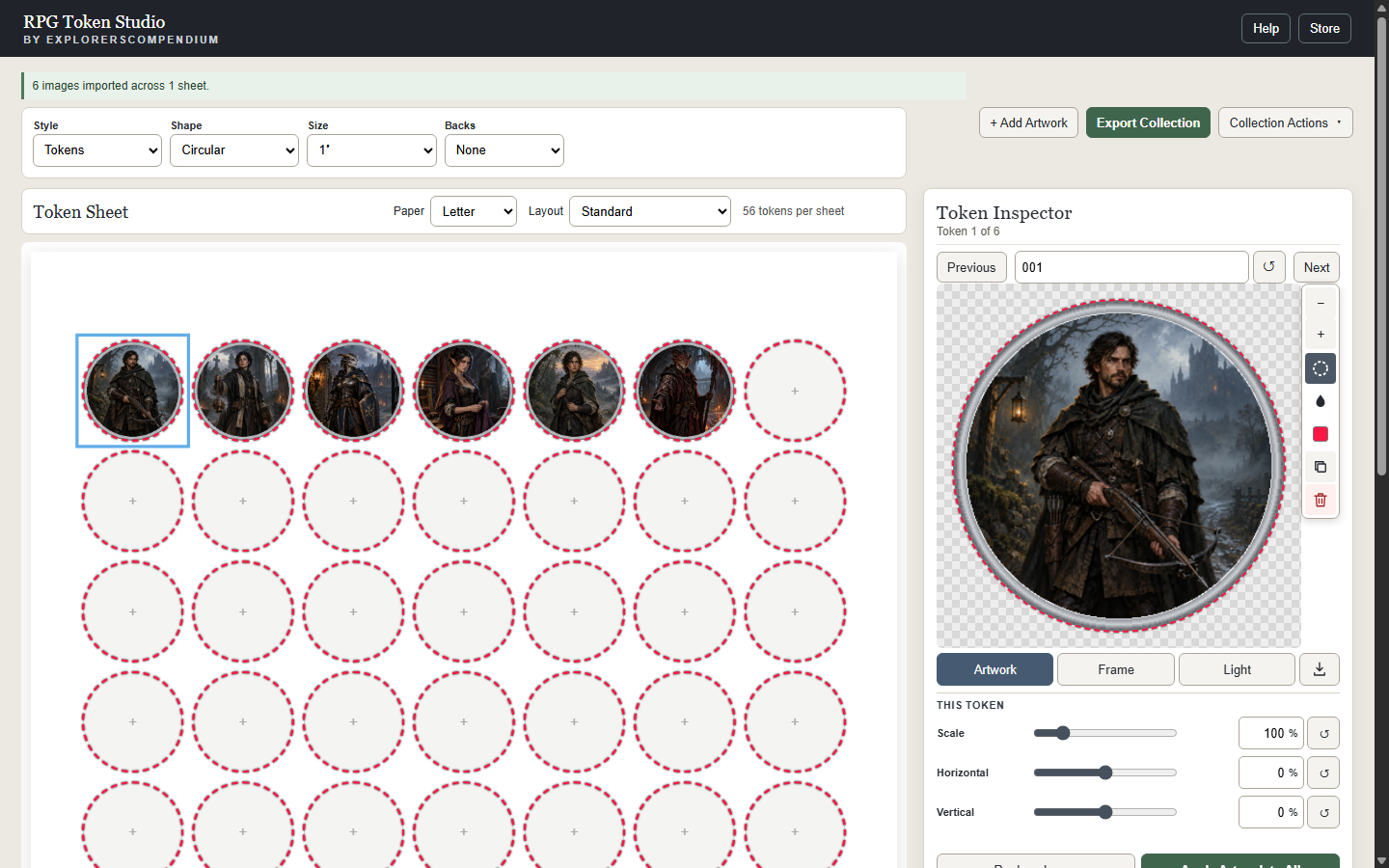
Select Add Artwork and choose one or more PNG, JPG or WebP images. The collection appears on the sheet while the selected portrait opens in the Inspector.

  1. Choose the collection style, shape and physical size.
  2. Select any token on the sheet to inspect it.
  3. Use Artwork, Frame and Light to refine the selected token.
Open Token Maker
Populated Token Maker showing a token sheet on the left and the Token Inspector on the right
The desktop workspace keeps the complete sheet and selected token visible together.
02 · Collection settings

Use the supplied settings file

A collection settings file restores the intended format, crops, lighting, frames and individual adjustments. It does not contain the artwork.

  1. Add artwork Upload all supplied PNGs, or only the tokens you need.
  2. Keep filenames unchanged Exact filenames connect each image to its saved adjustments.
  3. Load settings Open Collection Actions, choose Load Settings, then select the Circular, Square or Standee JSON file.
  4. Review and export Check the load report, then create your PDF or VTT files.
Using only part of a collection? That is fine. The load report lists saved tokens that were not uploaded; the tokens you selected still receive their matching settings.
Add PNGs Load settings Review report Export
03 · Mobile

Edit one token at a time

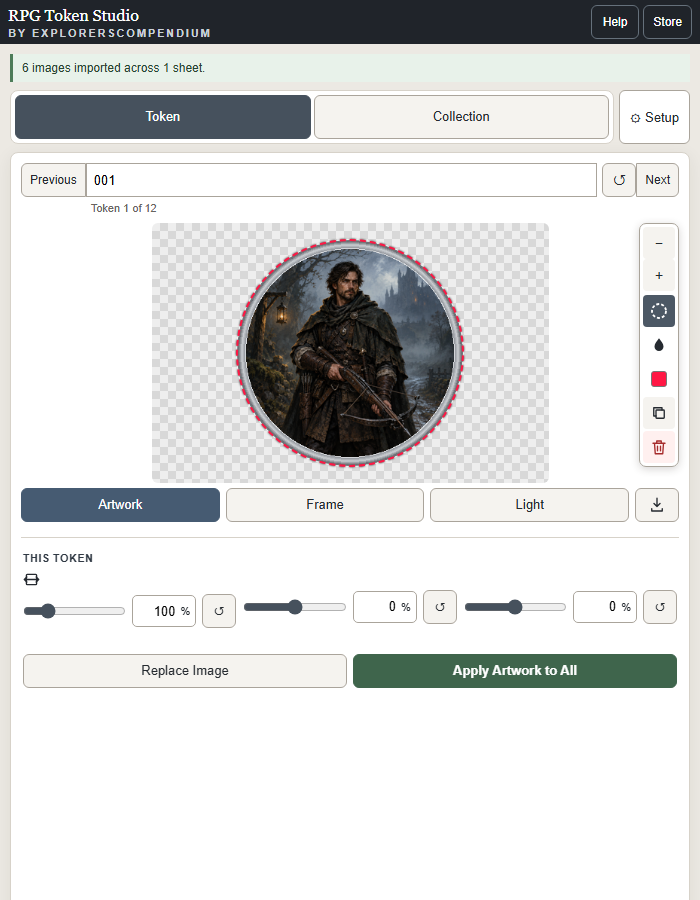
On smaller screens, the Token page focuses on the selected portrait. Move between tokens with Previous and Next, then open Artwork, Frame or Light below the preview.

Tip: Pinch the sheet on the Collection page to review a larger or smaller area without changing print size.
Mobile Token Maker showing the Token Inspector and Artwork controls
The mobile Inspector preserves the same editing controls in a focused layout.
04 · Digital play

Export for Roll20 or Foundry

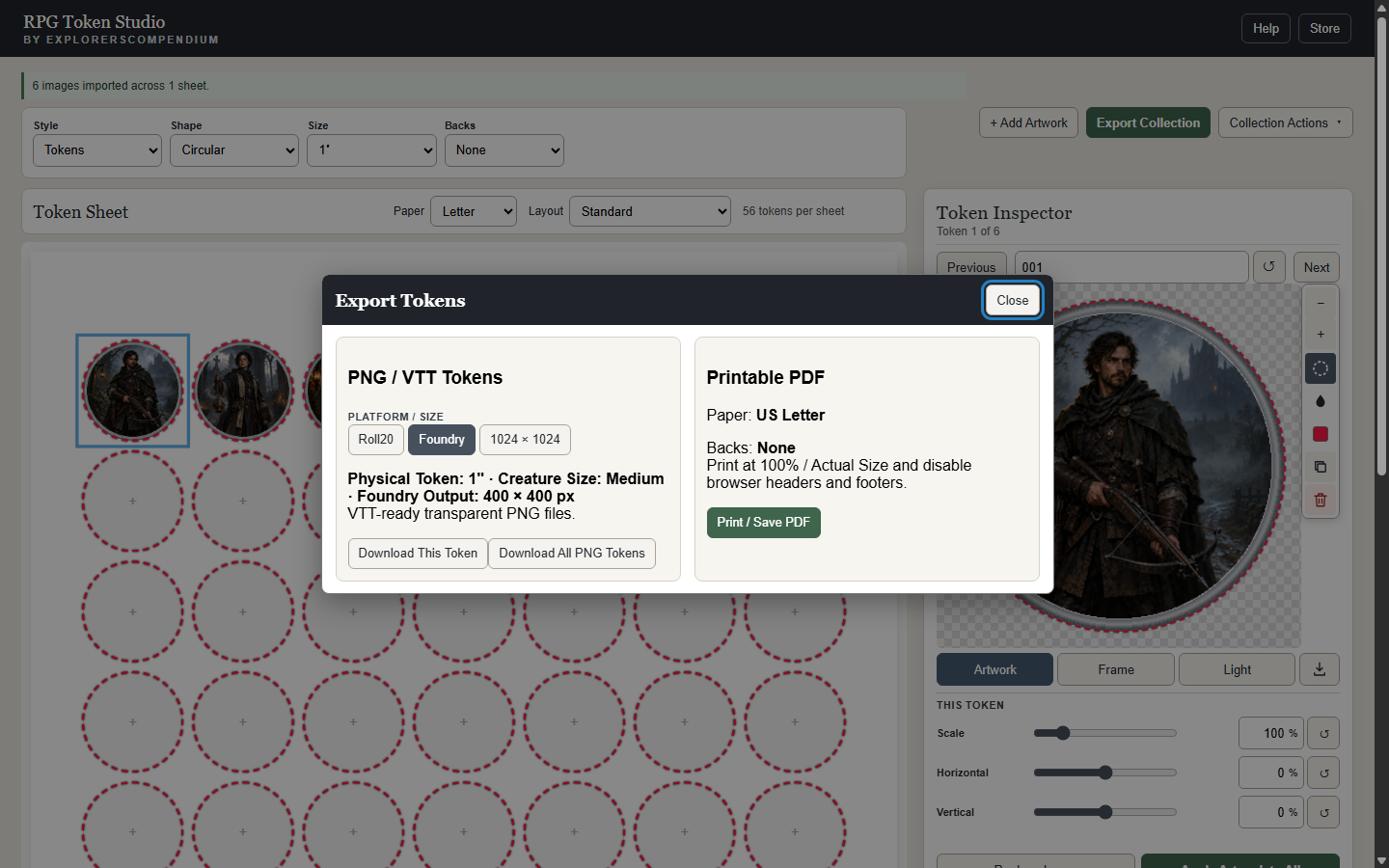
Choose the download icon for one token, or Export Collection for the full set. Select Roll20, Foundry or 1024 × 1024; each PNG includes the current artwork position, frame and lighting with transparent outer corners.

  • Roll20 280 px for Medium and Small tokens
  • Foundry 400 px for Medium and Small tokens
  • 1024 Fixed high-resolution export

Read the full VTT export guide

Export Tokens dialog showing Roll20, Foundry, 1024 pixel and printable PDF options
Token PNGs and printable sheets live together in one clear export panel.
05 · Print

Print at the correct physical size

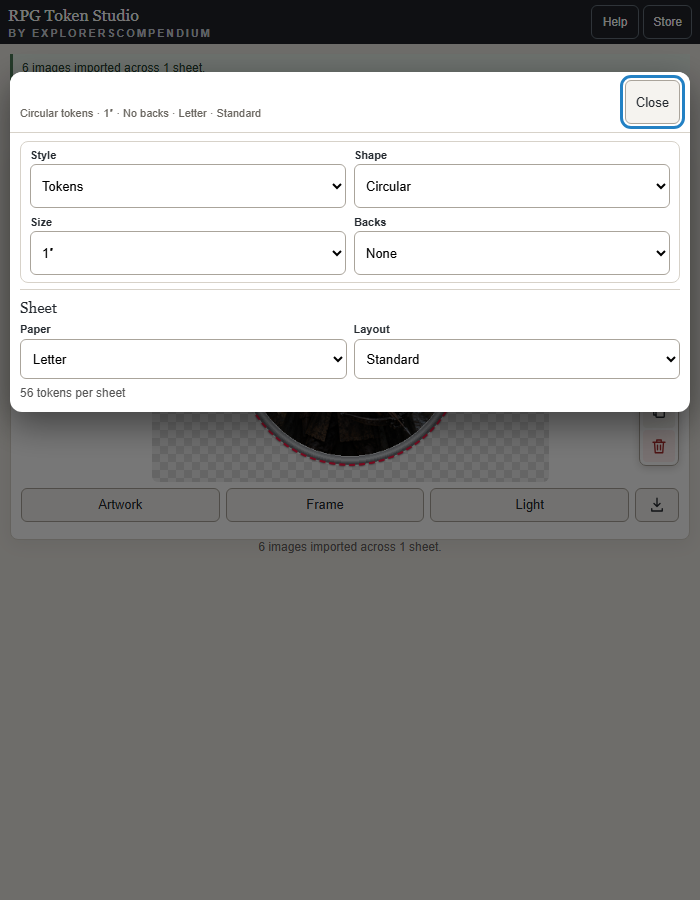
Open Setup to choose A4 or US Letter and select the sheet layout. Then use Print / Save PDF in Export Collection.

  1. Select Actual Size or 100% in the browser print dialog.
  2. Disable browser headers and footers.
  3. Use plain paper for the first duplex alignment test.

Read the full printable token guide

Mobile Collection Setup panel showing token style, shape, size, backs, paper and layout
Setup keeps physical format and sheet choices in one place on mobile.
06 · Optional format

Create foldable standees

In Setup, change Style to Standees. Choose names, outlines and standee colour, then review the automatically paginated sheet before printing.

Make standees